Body
Objective
Duo is requiring all users to update their Duo Mobile application to the latest version as part of an update to improve their security certificate trust. To access university services, including Canvas, MyRED, MyBlue, Mavlink, and Firefly, you must update the Duo Mobile app on your mobile device by March 31, 2026. Outdated versions will no longer function for two-factor authentication after this date.
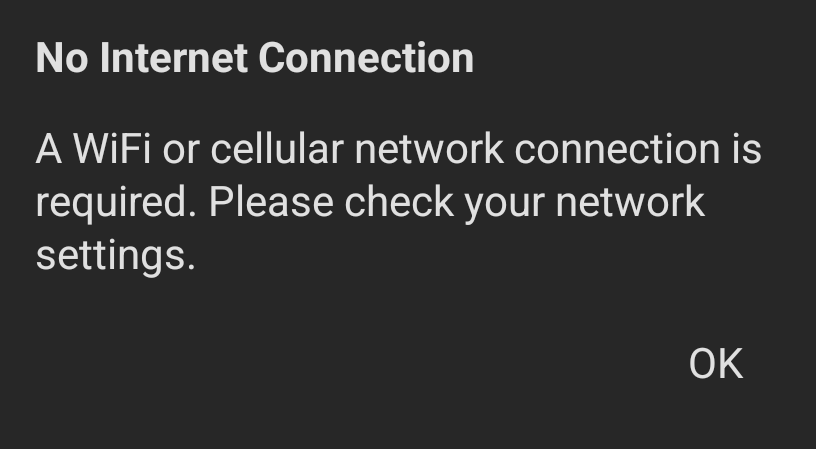
After March 31st, users who have not updated their Duo Mobile version to the minimum required version will see the following in their Duo Mobile app and their browser will remain stuck on "Check for a Duo push".
Not all users will need to update their Duo Mobile application if their device automatically updates applications or if they downloaded/updated their Duo Mobile application after March 24, 2025.
Instructions included in this article:
Users
- Current university members and affiliates
- Alumni and Emeritus
Before You Begin - Confirm Duo Mobile Version
All university members who previously downloaded the Duo Mobile app should begin by confirming they have the most up-to-date version of the Duo Mobile application.
Follow the steps below to see if you have the most up-to-date version of the Duo Mobile application:
- Open the Duo Mobile app on your mobile device

- Select the hamburger menu icon (three horizontal lines) in the upper left corner

- The current version on your device is listed at the bottom of the menu
- If the version is 4.104.0.1485.1, no further action is required
- If your version is not 4.104.0.1485.1, you do not have the most up-to-date version and will need to use the step-by-step instructions for your device type below
- Be sure to note trailing zeroes and decimal points in version numbers. For example, version 4.90 is not "4.9.0", but rather "4.90.0". Following Semantic Versioning logic, there would be 81 minor releases between 4.9.0 and 4.90.0, with 4.90.0 being the newer release.
- As another example, version 4.85 is older than 4.103, with 4.103 being the newer release and having 18 minor releases between the two.

Updating Duo Mobile on iPhone
These instructions are intended for use by all university members and affiliates who previously downloaded the Duo Mobile app to an iPhone device and need to manually update to the latest version of the application.
Follow the instructions below to manually update the Duo Mobile application on your iPhone device.
- Use your iPhone device to access the “App Store” application.

- Tap your profile icon in the upper right corner of the screen.

- Select “Apps”.

- Begin typing “Duo Mobile” into the search field.

- If there is an available update for the Duo Mobile app, the button will be labeled as “Update”. Tap “Update”.

- If prompted, enter your Apple ID Password or use Face ID/Touch ID to authorize the update.

Updating Duo Mobile on Android
These instructions are intended for use by all university members and affiliates who previously downloaded the Duo Mobile app to an Android device and need to manually update to the latest version of the application.
Follow the instructions below to manually update the Duo Mobile application on your Android device.
- Use your Android device to access the “Google Play Store” application.

- Tap your profile icon in the upper right corner of the screen.

- Tap “Manage apps & device”.

- Tap “See details”.

- Tap “Update” next to the Duo Mobile app, or tap “Update all” for all pending apps. If Duo Mobile is not displayed, it indicates there are no pending updates available.

Available Two-Factor Authentication Options for Older Devices
There are several available options for university members and affiliates who are unable to update the Duo Mobile application on their mobile device to the latest version due to the device limitations.
- Outdated versions of the Duo Mobile application can still be used in most situations after March 31, 2026 using the Time-based One-Time Passcodes (TOTP). Follow the TOTP instructions below to access services using an outdated version of Duo Mobile.
- Device authentication methods remain available, such as macOS Touch ID, Face ID, and Windows Hello, will continue to work as usual.
- Users may also request a YubiKey Security Key if they do not have a compatible mobile device. A Yubikey is a small physical USB device that enables two-factor authentication on your laptop or desktop device. This is an alternative option to using the Duo Mobile application on a personal mobile device.
- Users who are interested in upgrading their mobile device to a Duo Mobile compatible model can visit or contact the HuskerTech Store for available options.
Using a Duo Mobile Time-based One-Time Passcode (TOTP)
These instructions are intended for use by all university members and affiliates who need to use the Duo Mobile Time-based One-Time Passcode, also known as a Duo passcode, to access systems protected by single sign on (SSO). Please note: TOTP cannot be used for step-up authentication events.
Follow the instructions below to use the TOTP to complete SSO logins:
- Enter your username and password.

- Click “Other Options”.

- Select “Duo Mobile Passcode”.

- Open the Duo Mobile app on your mobile device.

- Tap the “TrueYou” account option.

- The “TrueYou” option will expand showing a temporary passcode. This passcode will expire within 30 seconds. If you are accessing a service using your mobile device, you can select the "Copy" button to paste the 6-digit code into your web browser.

- Back to your web browser, enter the temporary passcode from the Duo Mobile application into the “Passcode” field.

- Click “Verify”.

Device Compatibility
If your mobile device is not on this list, you will need to review the "Available Two-Factor Authentications for Older Devices" section.
iPhone models compatible with iOS 16 (therefore Duo 4.85+ eligible on iOS):
- iPhone 17 / iPhone 17 Pro / iPhone 17 Pro Max / iPhone 17e
- iPhone 16 / iPhone 16 Plus / iPhone 16 Pro / iPhone 16 Pro Max / iPhone 16e
- iPhone 15 / iPhone 15 Plus / iPhone 15 Pro / iPhone 15 Pro Max
- iPhone 14 / iPhone 14 Plus / iPhone 14 Pro / iPhone 14 Pro Max
- iPhone 13 / iPhone 13 mini / iPhone 13 Pro / iPhone 13 Pro Max
- iPhone 12 / iPhone 12 mini / iPhone 12 Pro / iPhone 12 Pro Max
- iPhone 11 / iPhone 11 Pro / iPhone 11 Pro Max
- iPhone XS / iPhone XS Max / iPhone XR / iPhone X
- iPhone 8 / iPhone 8 Plus
- iPhone SE (2nd generation)
- iPhone SE (3rd generation)
iPad models compatible with iPadOS 16 (therefore Duo 4.85+ eligible on iPadOS):
- iPad Pro 12.9" (1st gen and later)
- iPad Pro 11" (1st gen and later)
- iPad Pro 10.5", iPad Pro 9.7"
- iPad (5th gen and later, incl 6th–10th)
- iPad mini (5th gen and 6th gen)
- iPad Air (3rd gen, 4th gen, 5th gen)
Android models compatible with Android 12+:
- Google Pixel (recent generations; devices that can update to Android 12+)
- Samsung Galaxy S / Z / Note (models that can update to Android 12+)
- Samsung Galaxy A series (models that can update to Android 12+)
- OnePlus (models that can update to Android 12+)
- Motorola (models that can update to Android 12+)